Android VPN + Google Play Installation Tutorial
From installing Clash to opening Google Play, set up your Android network environment in one go
🧭 Before you start
- An Android phone (Android 7.0 or later recommended)
- An email address (to register an ikuuu account)
- Allow installation from unknown sources (needed to install Clash / Google Play APK)
- Already have a subscription link? Skip steps 2-3 and start from step 4 (import configuration)
Download and install Clash for Android
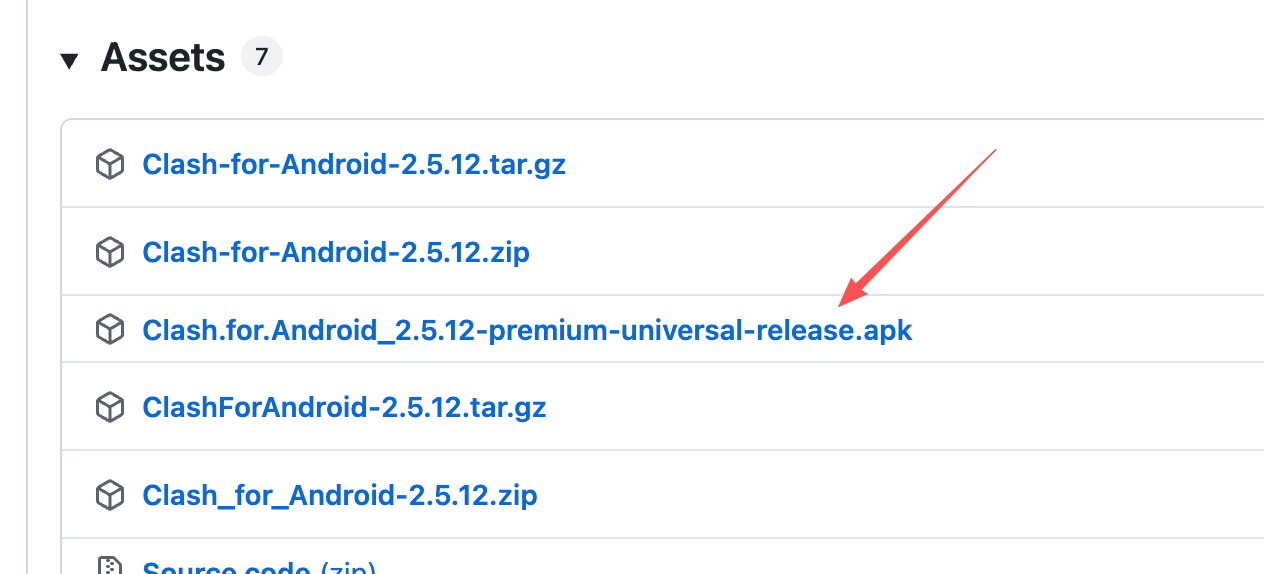
Open the Clash for Android download page (GitHub Releases) in your phone browser and tap the APK file to download it. After the download finishes, tap to install; if the system warns about unknown sources, allow your browser to install apps in settings.
Register, log in and buy a subscription node
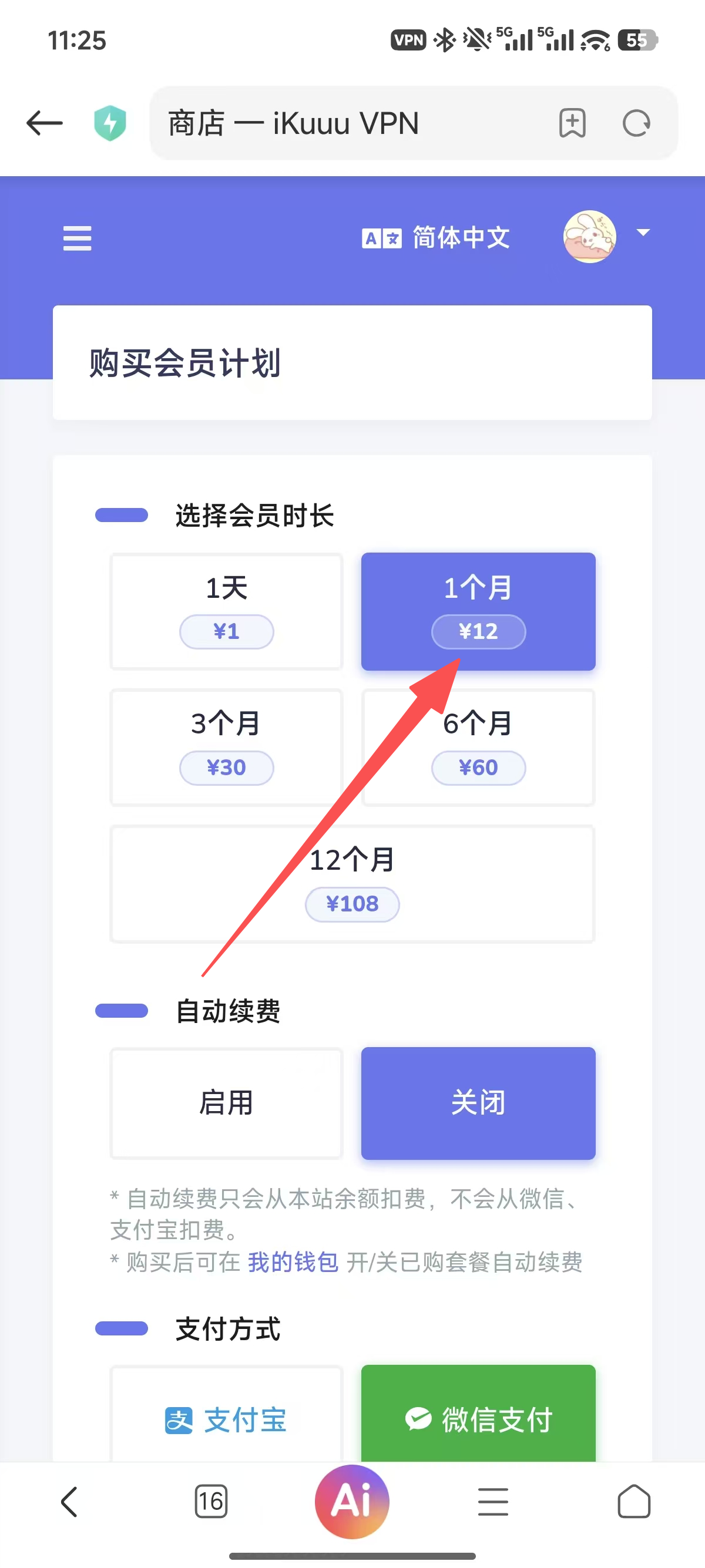
Open the ikuuu website in your phone browser, register and log in. Go to the Shop page, choose the 1-month / 12¥ plan and complete the purchase. Your subscription activates immediately. If you already have a working subscription (e.g. from another service), you can skip this step and the next one.
Copy the subscription link
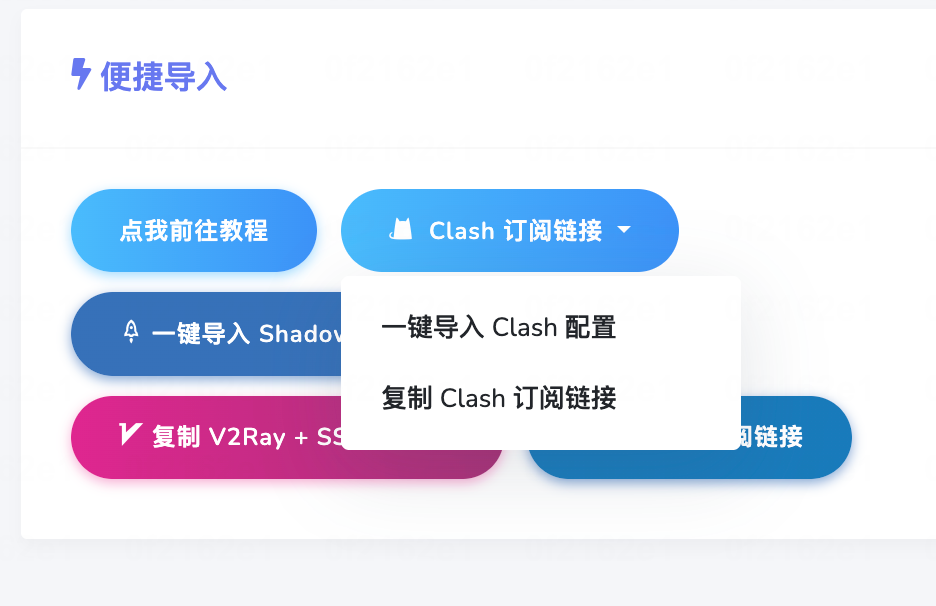
After purchasing, go to the My Subscription page and tap “Copy subscription link” in the one-click subscription area. Make sure you copy the entire link (e.g. https://…/subscribe?token=…) — don't miss the parameters at the end.
Import the configuration and start the VPN
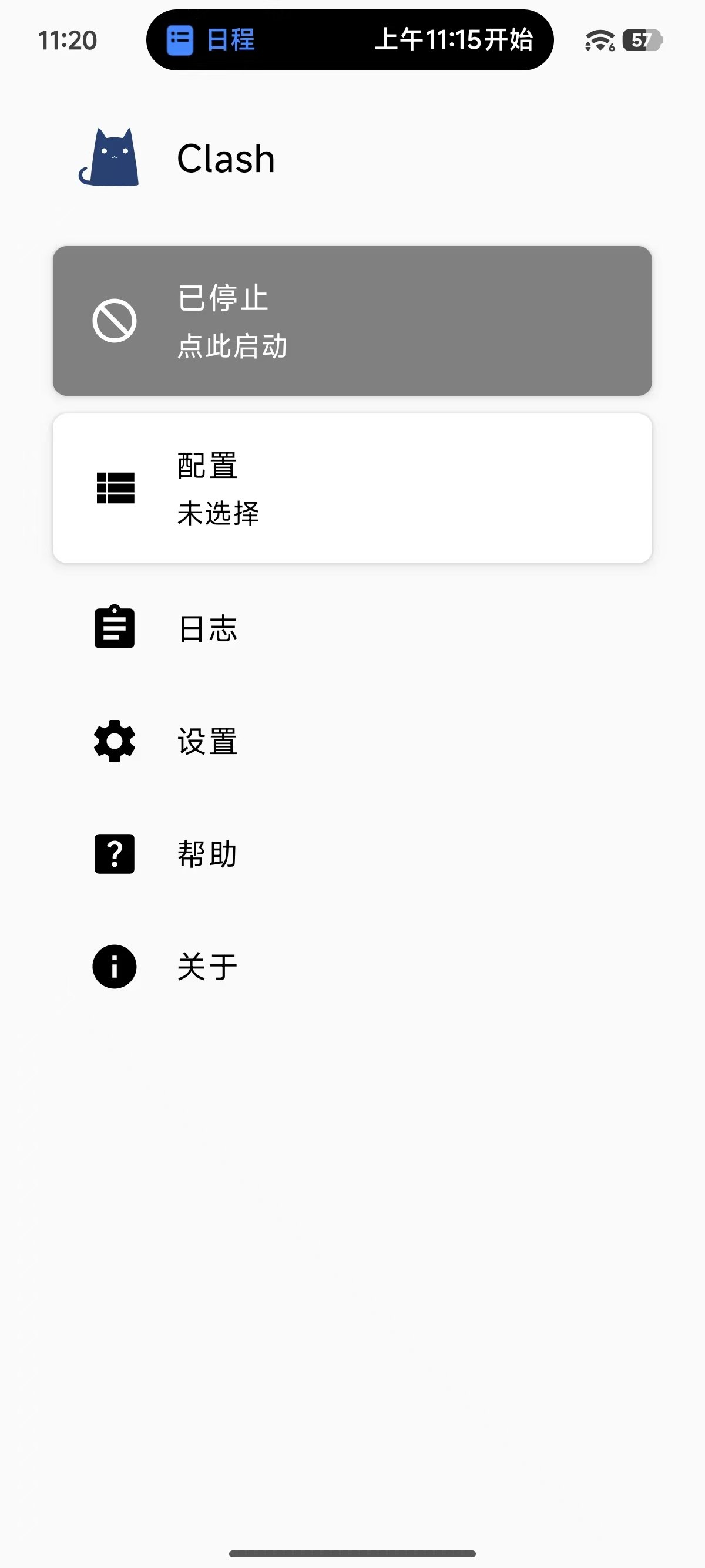
Open Clash for Android: Home → Profiles → “New profile” at the top right → “Import from URL”, paste the subscription link and save. Return to the home screen and tap “Start” at the top to enable the proxy. Once the status shows Connected, you can access Google.
Download and install Google Play
Open the APKPure page for the Google Play Store in your browser, tap “Download APK” and wait for it to finish. Tap the file to install (allow unknown sources if prompted). After installing, open Google Play — if the store home page loads, it works.

Download the Google app, register and log in with a Google account
Search for “Google” in Google Play and download the official Google app (colorful G icon). Open it, tap the avatar at the top right → “Add account” → “Create account”, fill in your name and date of birth, verify your phone number and set a password. After registering, open Google Play and log in with the new account via the avatar at the top right — once your account page opens, everything is ready and you can take Android install and review tasks.
🎯 After finishing
- Your Google account is logged into Google Play: joining Google Groups and installing apps will use this account
- Back to the tutorial center and start with the “Android Install Task Tutorial” for your first task
- Keep the Clash proxy on while working; Google Play downloads and review tasks need a stable connection
- If nodes stop working, copy a fresh subscription link from ikuuu and update the profile in Clash