Install taskAndroid⏱ About 5 min
Android Install Task — Complete Tutorial
From joining the group to installing and opening the app: complete your first install task step by step
Progress 1/4 steps25%
🧭 Before you start
- An Android phone (Android 7.0 or later recommended)
- A Google account (use the same one you signed into BetaReward with)
- Access to Google Play (keep your proxy stable if you use one)
1
Join the Google Group
Find the “Google Group link” on the task detail page and open it. Sign in with your Google account, tap “Join group” and wait for the confirmation. The beta app only appears in your Google Play once you're a group member.
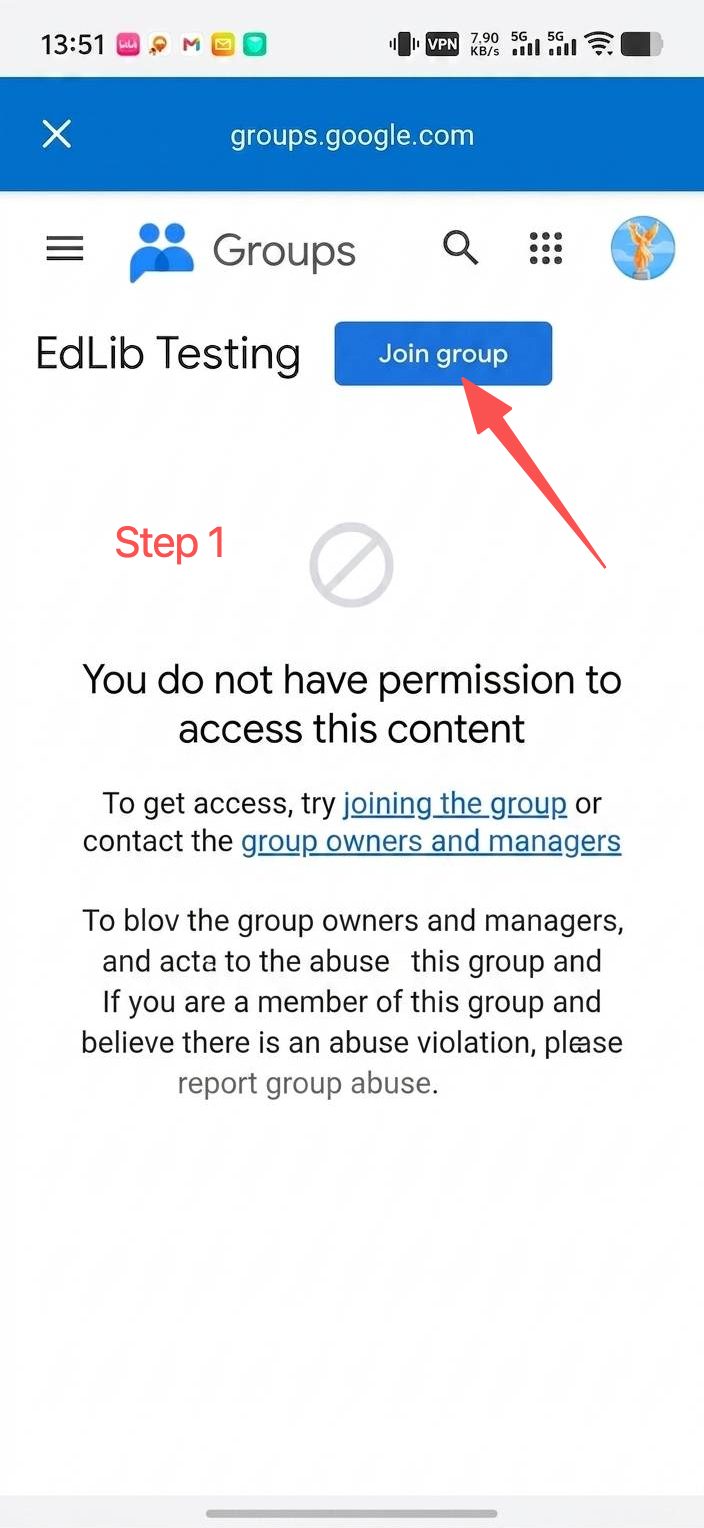
Tap “Join group” on the Google Groups page
💡 TipNo need to post in the group; just stay a member. If it says “Request sent”, wait for the admin to approve before continuing.
2
Open the Google Play store link
Back on the task page, tap the “Google Play link” to open the store page and confirm the app name and the “Install” button appear.
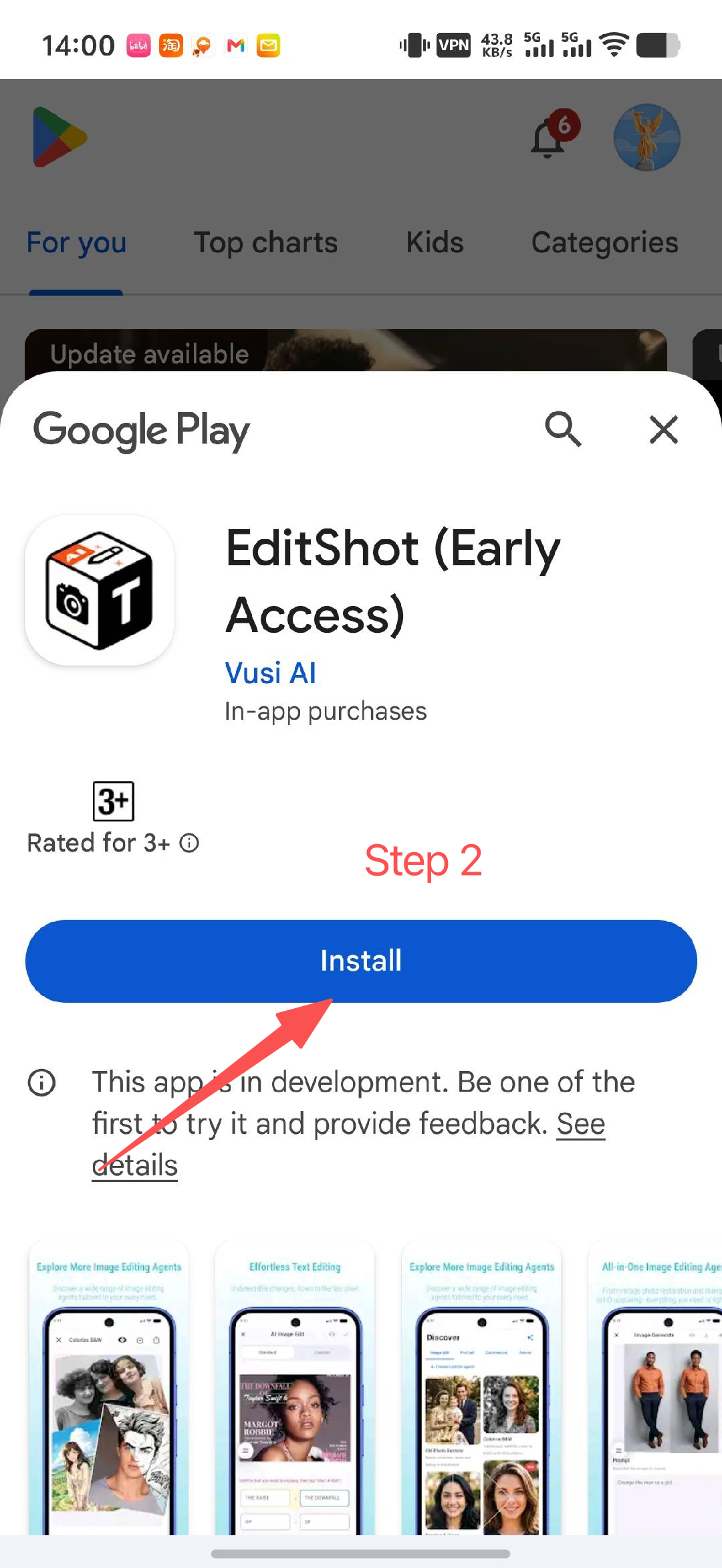
The store page shows the app and the “Install” button
💡 Common issue: the app won't show in the storeGoogle's risk control sometimes hides the app temporarily (a newly joined group can also take a few minutes to sync). Don't refresh repeatedly — wait a few minutes and reopen the link.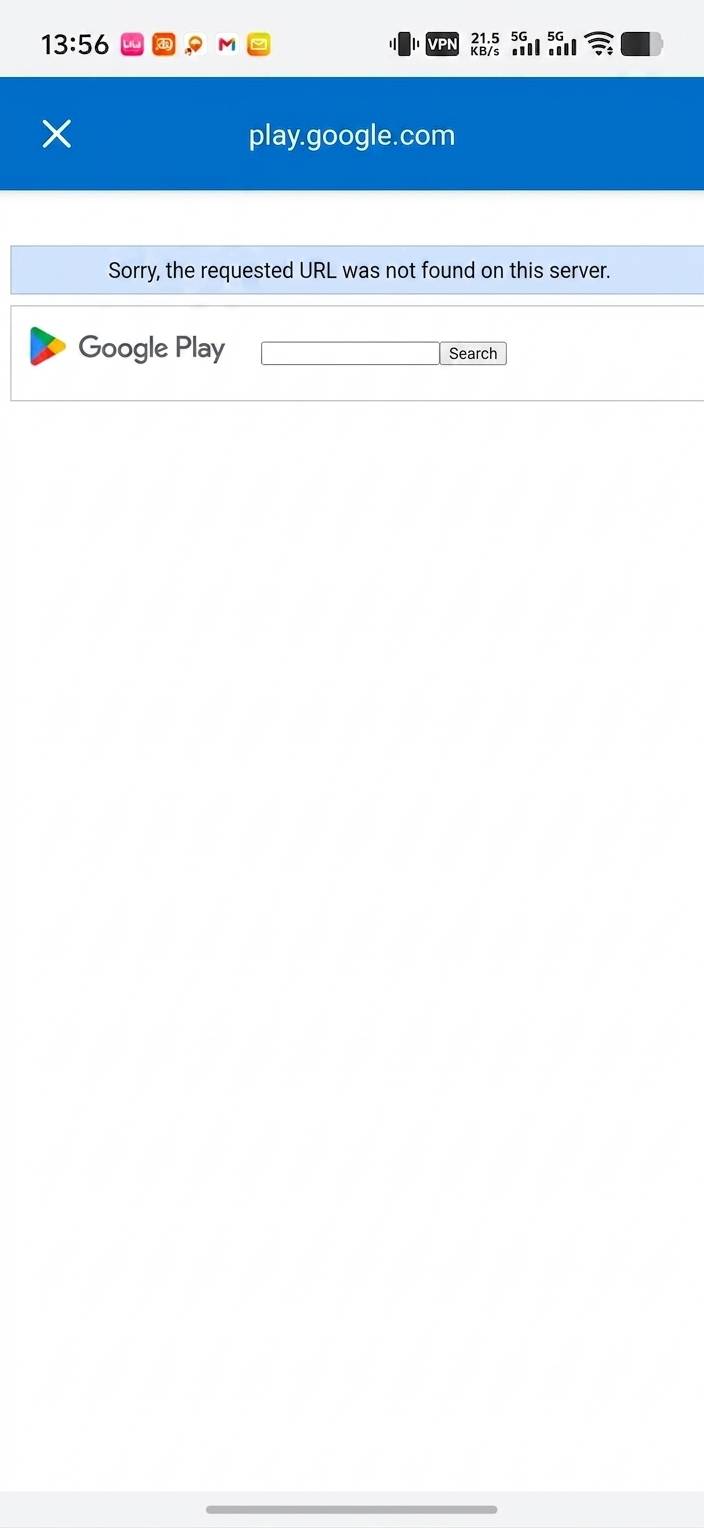
3
Download and install the app
Once the store page loads, tap “Install” and wait for the download and installation to finish. Keep the store page open during installation.
Troubleshooting reference: wait a few minutes and retry
4
Open the app
After installation, go back to the home screen, find the app icon and open it. Browse a few pages to confirm the app works normally.
Demo: opening the app from the home screen
💡 DoneBack on the BetaReward task page, upload the recording of opening the app to complete install verification. After approval, keep the app installed for 3 days and the commission is paid automatically.
🎯 After finishing
- Upload the install recording on the task page (record opening the app from the home screen)
- Keep the app installed for 3 days after approval; no other videos needed
- You can apply for the check-in subtask to earn extra rewards by opening the app daily
- When the 3-day countdown ends, the install commission enters your wallet automatically