Review taskiOS⏱ About 4 min
iOS Review Task — Complete Tutorial
Leave a real review for an app in the App Store and earn commission per review
Progress 1/3 steps33%
🧭 Before you start
- iPhone / iPad with the App Store installed
- An Apple ID signed in to the App Store
- Access to the App Store
1
Open the app page, tap 5 stars and start writing a review
Search for the task's app in the App Store, open its page, scroll to “Ratings & Reviews”, tap 5 stars, then tap “Write a Review”.
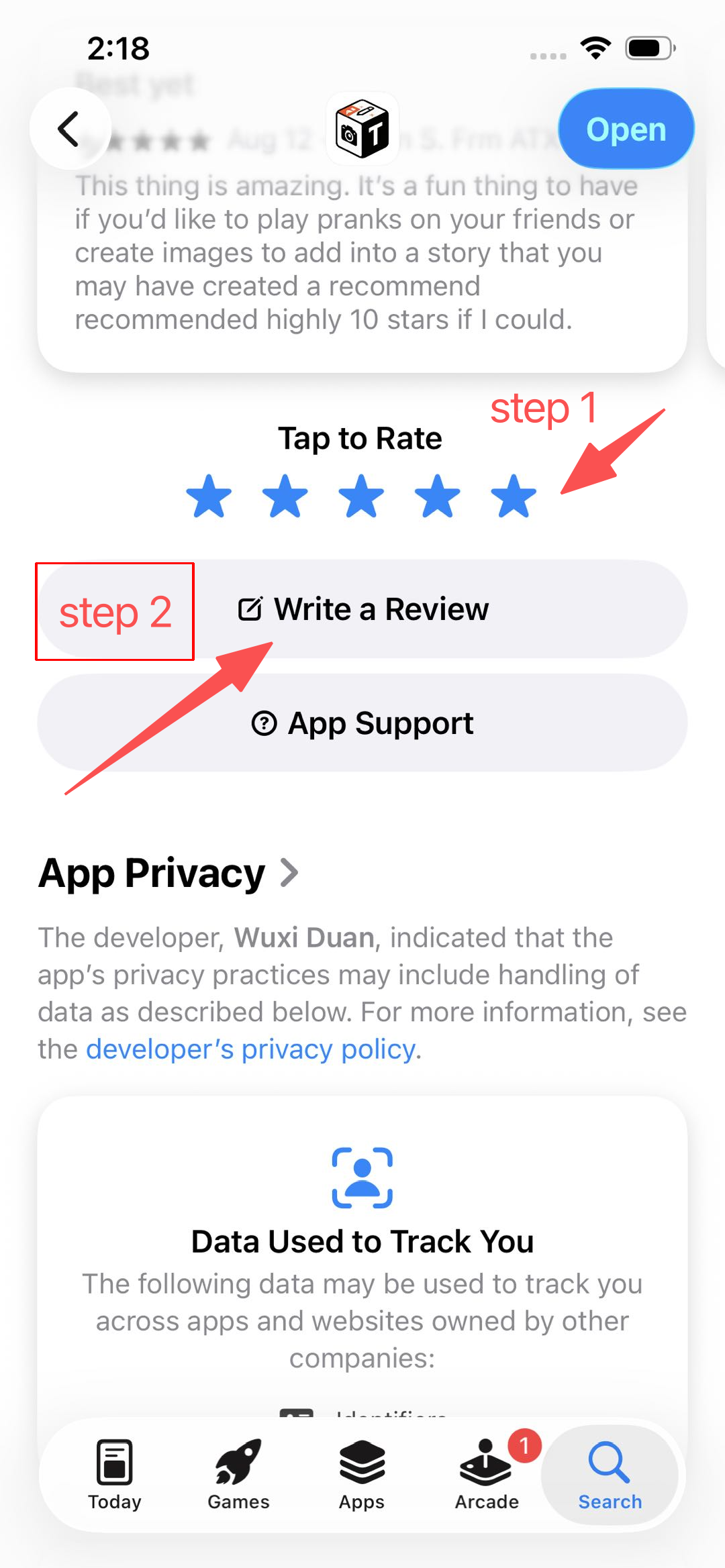
Tap 5 stars on the app page and choose “Write a Review”
💡 TipMake sure your Apple ID is signed in. If “Write a Review” isn't shown, tap the star rating first and the entry will appear.
2
Fill in the title and content, then tap Publish
Fill in the Title and Review fields, then tap “Publish” at the top right. For tasks with comments, tap “Copy comment” on the BetaReward task page first and paste the title and content here.
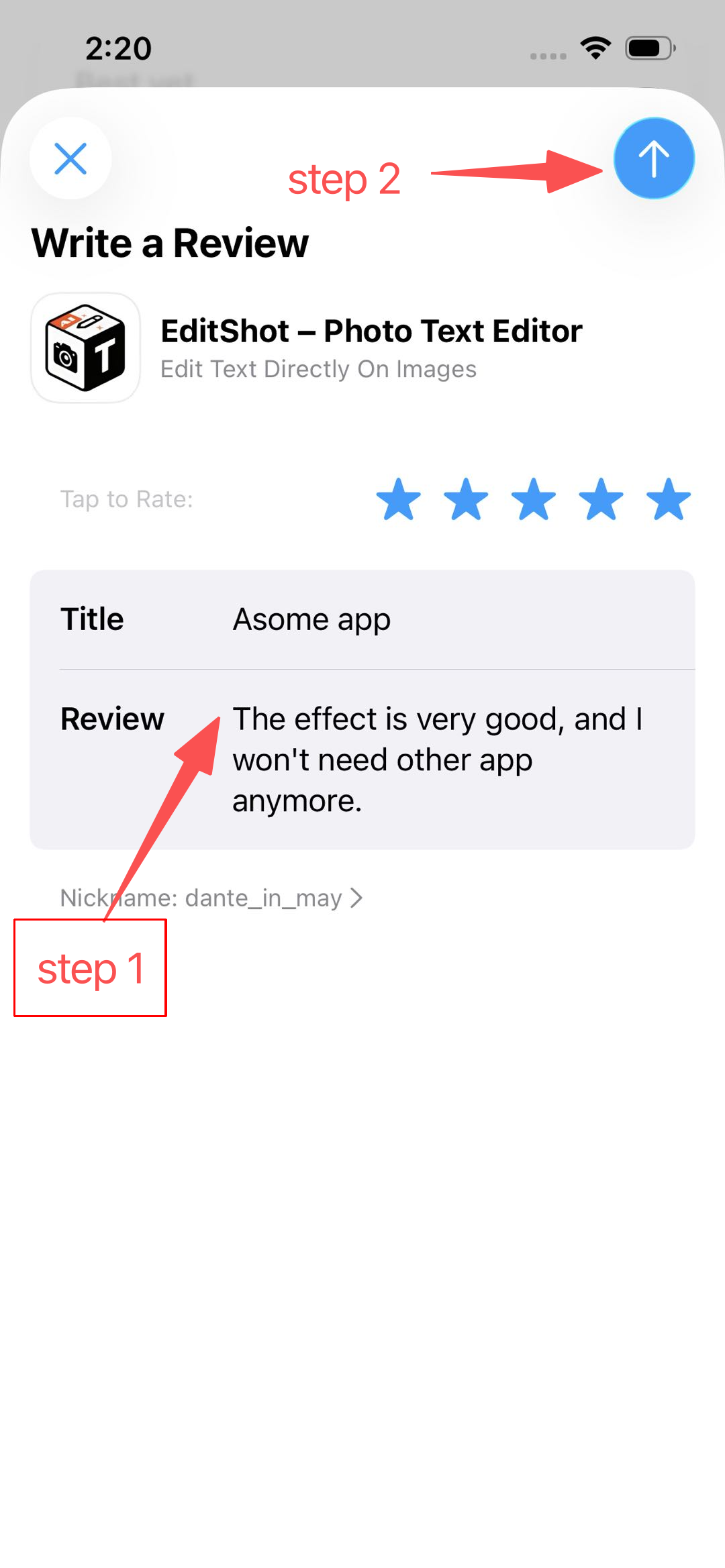
Fill in the title and content, then tap Publish
💡 DoneAfter publishing, continue to the next step: install and open the app, then upload screenshots on the BetaReward task page to verify.
3
Install and open the app
Back in the App Store, tap “Get / Install” on the app page. After installing, open the app from the home screen and browse a few pages. Review tasks require screenshots, so keep them for submission.
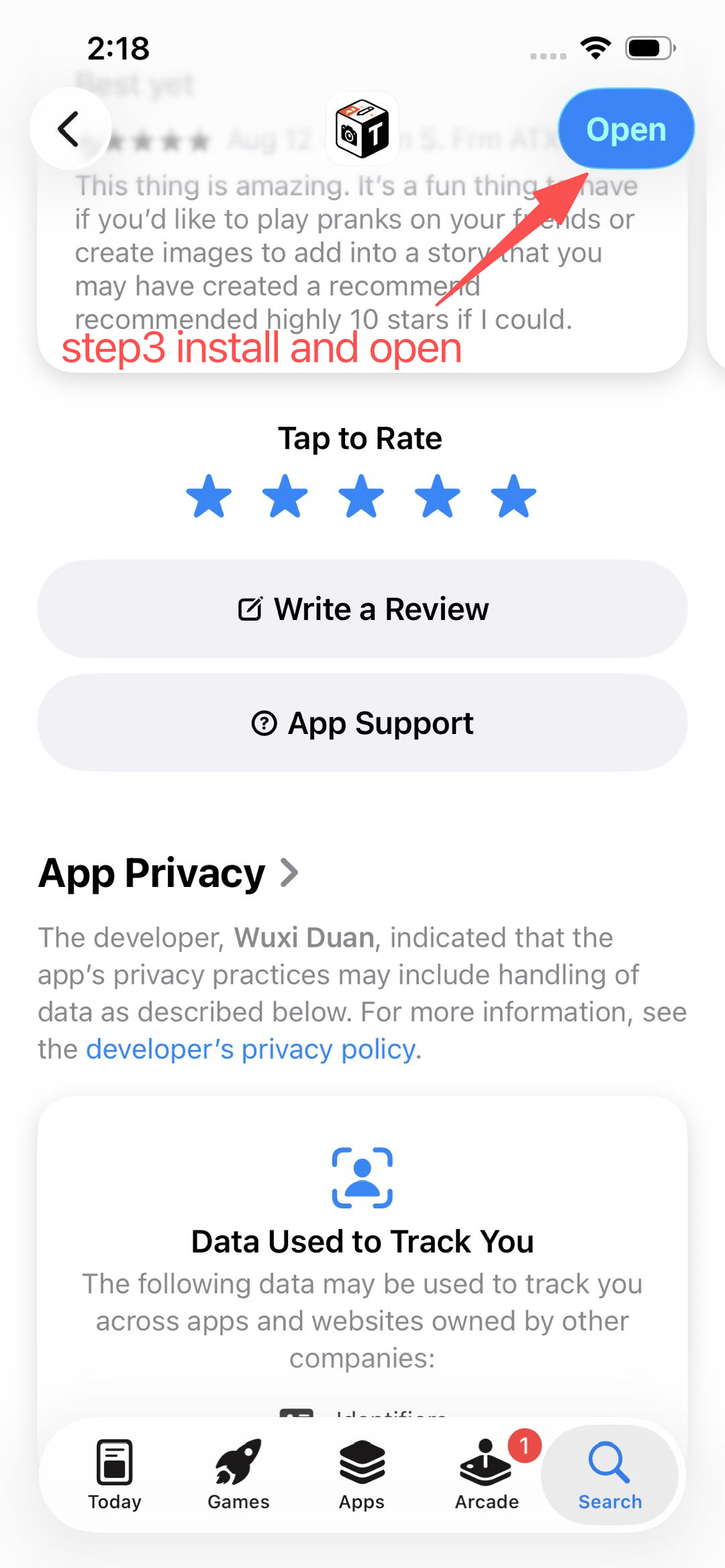
Open and use the app after installation
💡 Final stepBack on the BetaReward task page, upload 1-6 review screenshots (review page and app open screen). Commission is credited instantly after verification.
🎯 After finishing
- Tap “Copy comment” on the BetaReward task page and paste it into the App Store review box
- After publishing, install and open the app, and keep screenshots for submission
- Upload the review screenshots (1-6) on the task page
- Commission is credited to your wallet instantly after verification
- Tasks with comments must be completed within 1 hour or they expire